

← WordPress & WooCommerce Development

FREE DOWNLOAD · VERSION 1.1.0

Block User

Prevent checkout when customer details match your configured email, phone, full-name or address blocklist. Manage entries and choose the message shown to matching customers.
What Block User helps you do

Configured blocklists

Add email, phone, full-name and address entries from the settings page.

Matching rules

Email, phone and names use normalized exact matching. Addresses can use partial street matching with optional city, region and postal qualifiers.

Checkout message

Choose the message displayed when a customer matches a configured entry.

Manage entries

Add notes and remove an entry when you want to unblock it.

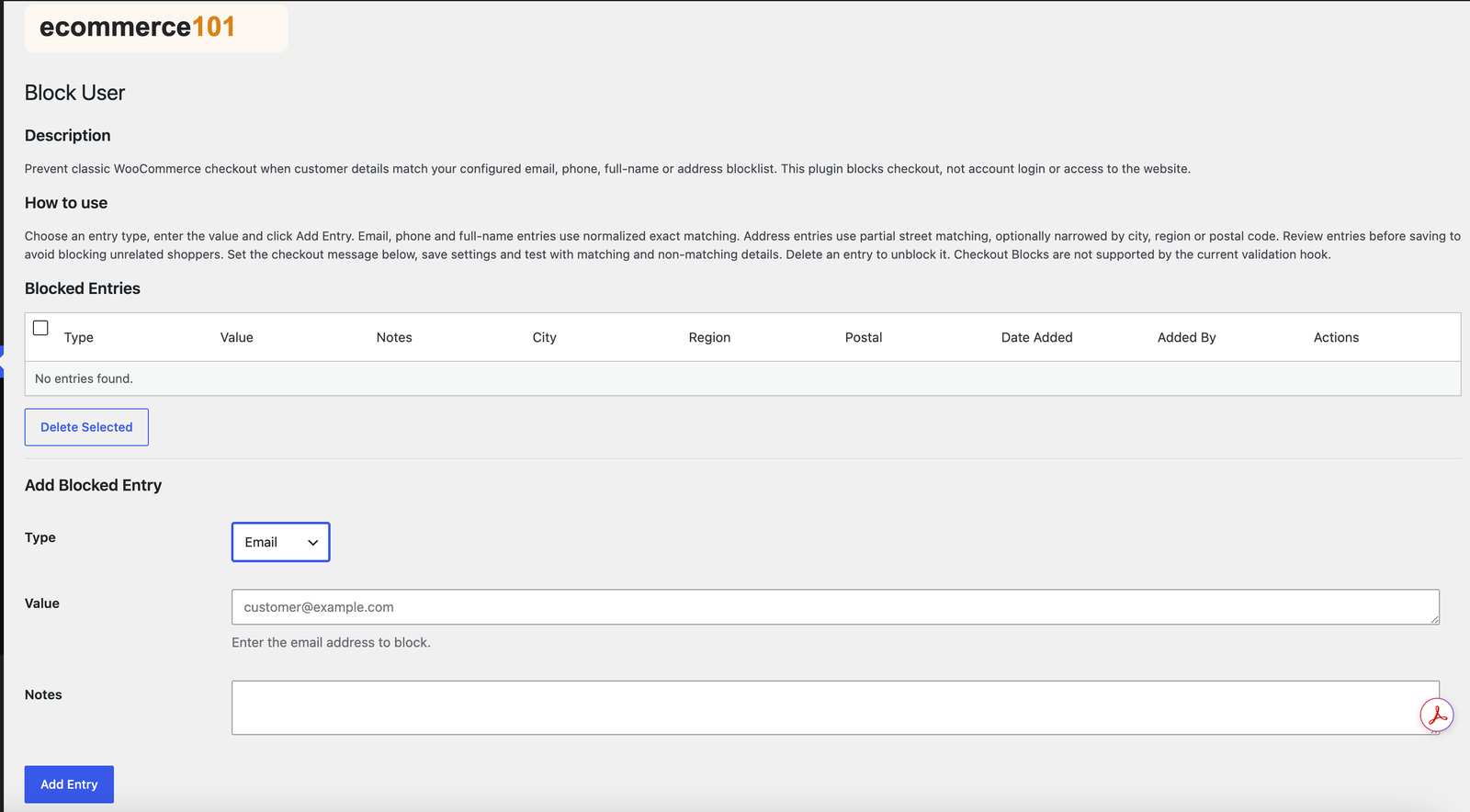
A look at the settings

Block User settings with Ecommerce101 branding

How to install and use

  1. Upload the ZIP through Plugins → Add New → Upload Plugin, then activate it with WooCommerce active.
  2. Open WooCommerce → Block User.
  3. Choose an entry type, enter the value, and add optional notes or address qualifiers.
  4. Click Add Entry, configure the checkout message and save settings.
  5. Test matching and non-matching checkout details. Remove an entry to unblock it.

Requirements and useful notes

  • Requires active WooCommerce and PHP 7.4+.
  • Blocks checkout; it does not block account login or general access to your website.
  • Built for classic WooCommerce checkout. Ask us about a custom Checkout Blocks integration.
  • Review broad name or address entries before saving to avoid blocking unrelated shoppers.

Need help with setup?

Contact Ecommerce101 with the plugin name and your store details.